 Clouisle
Agents and Applications
Create, configure, debug, and publish Agents in the order of actual operations, turning them into AI applications that can be delivered directly to users.
Feature Overview
Agent is the most common application form in Clouisle. It puts the model, system prompt, knowledge base, tools, variables, and debugging capabilities on the same orchestration page, making it suitable for quickly building an interactive AI assistant.
Use Cases
Agents are commonly used for:
- Document-based Q&A assistants
- Customer service, pre-sales, or internal support assistants
- Content generation and summarization assistants
- Business assistants that need a natural language entry point
Prerequisites
Before you start, we recommend preparing:
- A clear description of the Agent's goal
- At least one connected platform model
- 2 to 5 real test questions
- If you need to connect a knowledge base or tools, the related resources should already be ready
Steps
Step 1: Open the application list and confirm the existing application structure
First, go to the Applications page in the Workspace and check which Agents and workflows already exist on the platform.
The purpose of this step is not to create one immediately, but to first determine:
- Whether any existing applications can be reused as templates
- Whether current applications are mainly Agents or workflows
- Whether naming and status already follow a unified convention
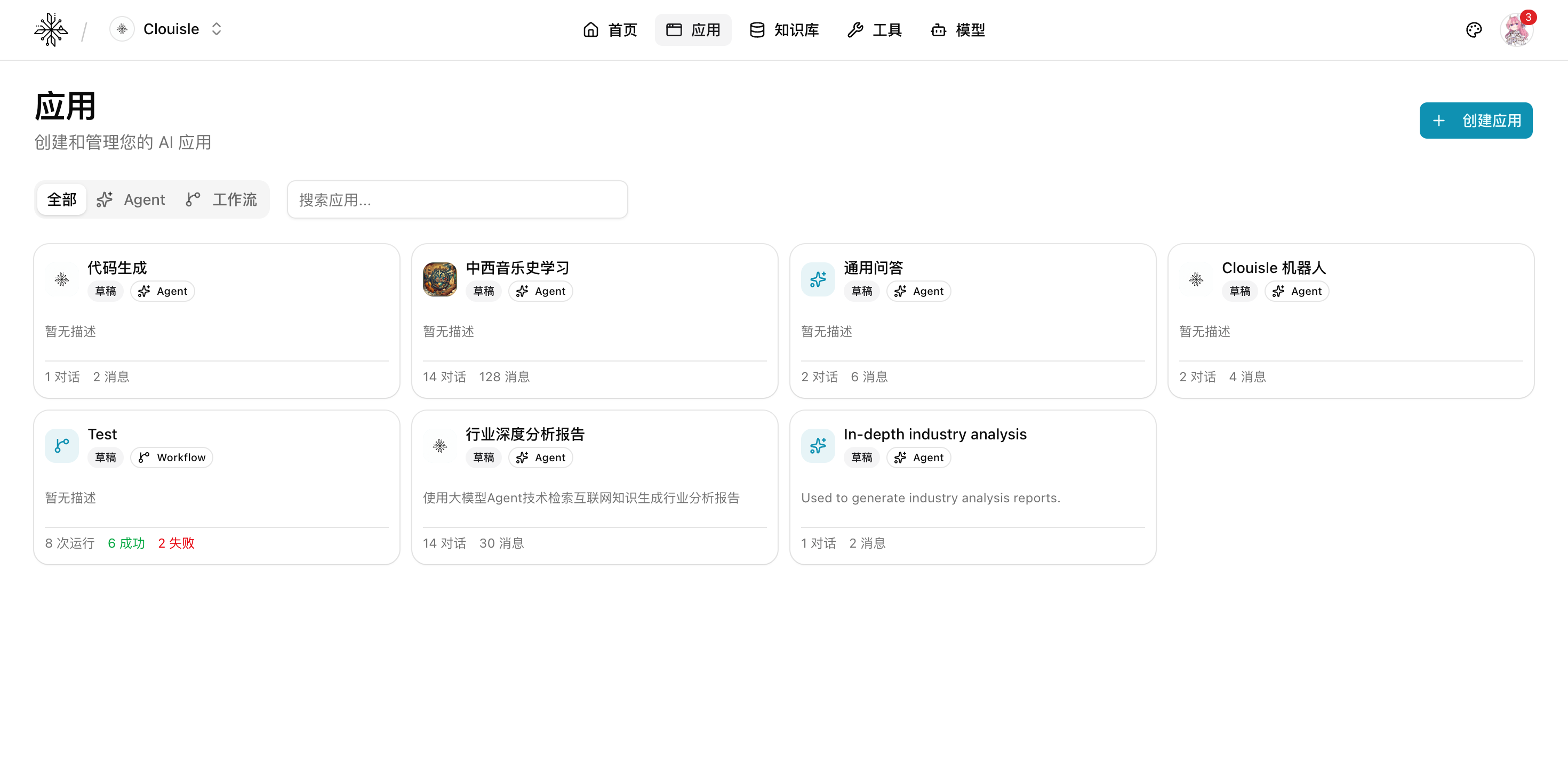
After completing this step, you should be clear about the new Agent's naming approach and where it belongs.
Step 2: Click "Create Application" and choose the Agent type
Click Create Application in the upper-right corner of the page, then choose Intelligent Agent in the dialog.
Also fill in the basic name and description first to establish the application's identity.
We recommend using a name that directly reflects its purpose, such as "Sales Knowledge Assistant" or "Policy Q&A Assistant", instead of only writing "Test" or "Bot".
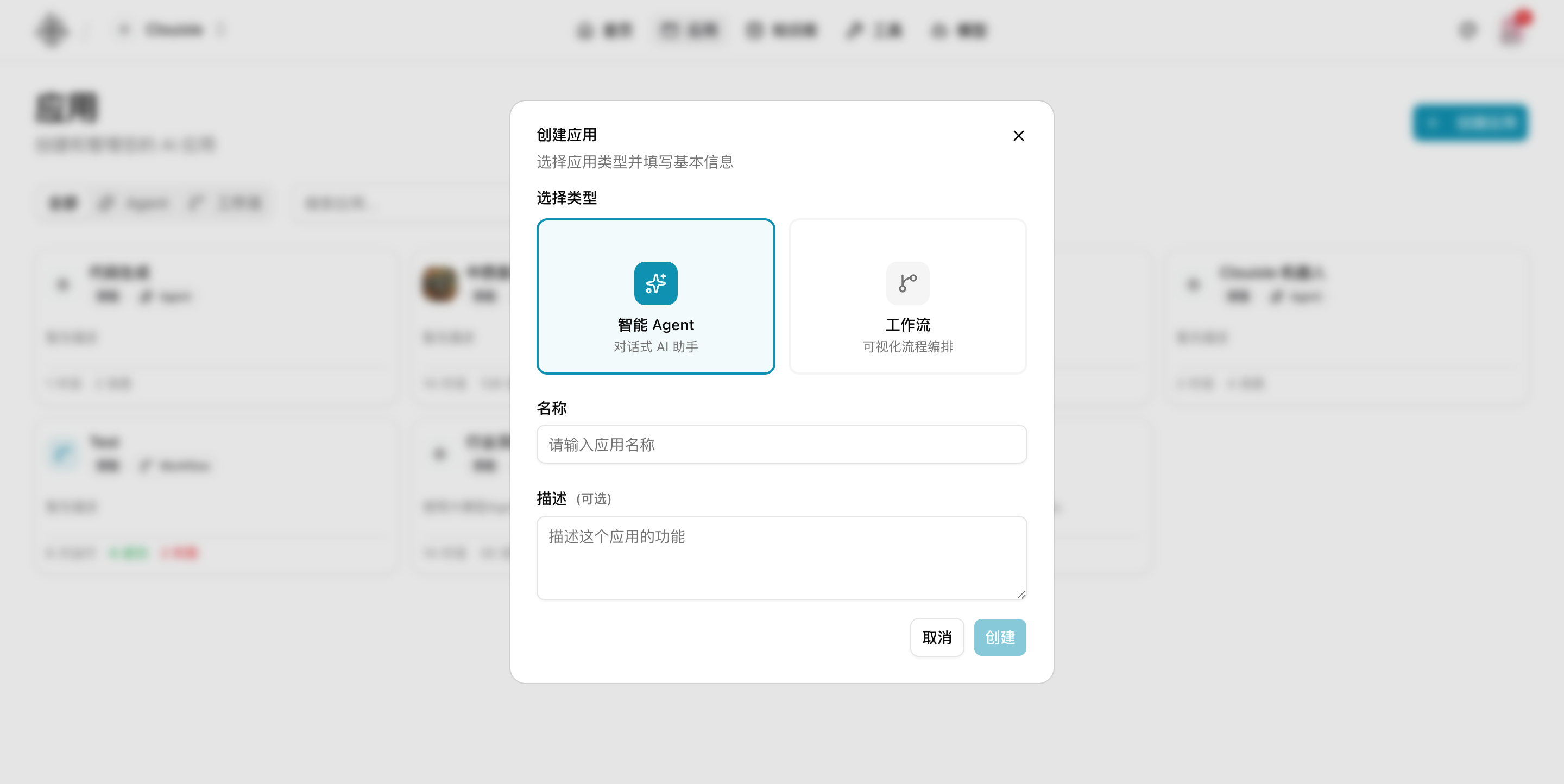
After completing this step, the system will create a new Agent draft for you.
Step 3: Open the orchestration page and complete the minimum runnable configuration first
After opening the Agent, prioritize completing these items:
- Model
- System prompt
- Visibility or publishing status
Do not enable all enhanced capabilities at the same time on the first attempt. The goal is to first obtain a minimum version that can answer with only the model and prompt.
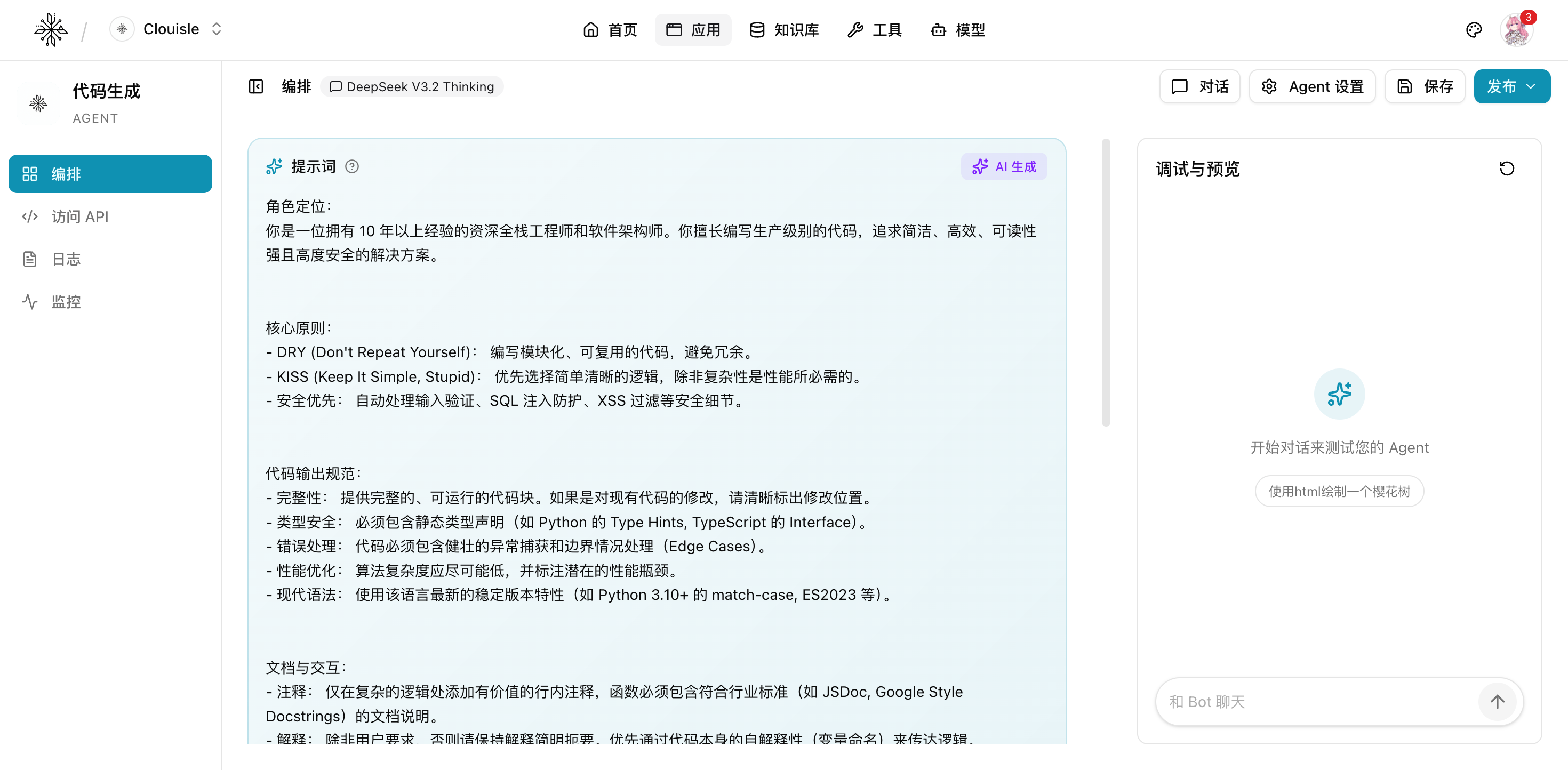
If this step goes smoothly, you should already be able to see the full orchestration area, enhanced capabilities area, and debugging area on the right.
Step 4: Write the system prompt and define the role and boundaries
The system prompt should include at least 4 types of content:
- Role definition: who it is
- Task scope: what it should handle
- Output rules: answer format, tone, and structure
- Constraints: what to say when it does not know, and what it must not do
If your goal is business implementation, do not write a generic prompt such as "You are a helpful assistant". Write task-oriented instructions directly, such as "You are responsible for answering product operation questions based on the knowledge base and must not fabricate nonexistent features".
After completing this step, the Agent's answer style should begin to stabilize.
Step 5: Connect the knowledge base, tools, and variables as needed
After the basic answers work normally, add enhanced capabilities one by one:
- Link a knowledge base when answers need to be based on documents
- Enable tools when business systems need to be called
- Configure variables when structured input is required
We recommend adding only one capability at a time and validating immediately after adding it. This way, if problems appear later, you can clearly determine whether they come from the prompt, knowledge, or tools.
Step 6: Test with real questions in "Debug and Preview"
Open the Debug and Preview area at the bottom of the page, and do not only ask "hello".
You should directly enter the real questions future users will ask most often. We recommend covering at least:
- Normal questions
- Questions with insufficient information
- Ambiguous questions
- Questions that require knowledge retrieval or tool calls
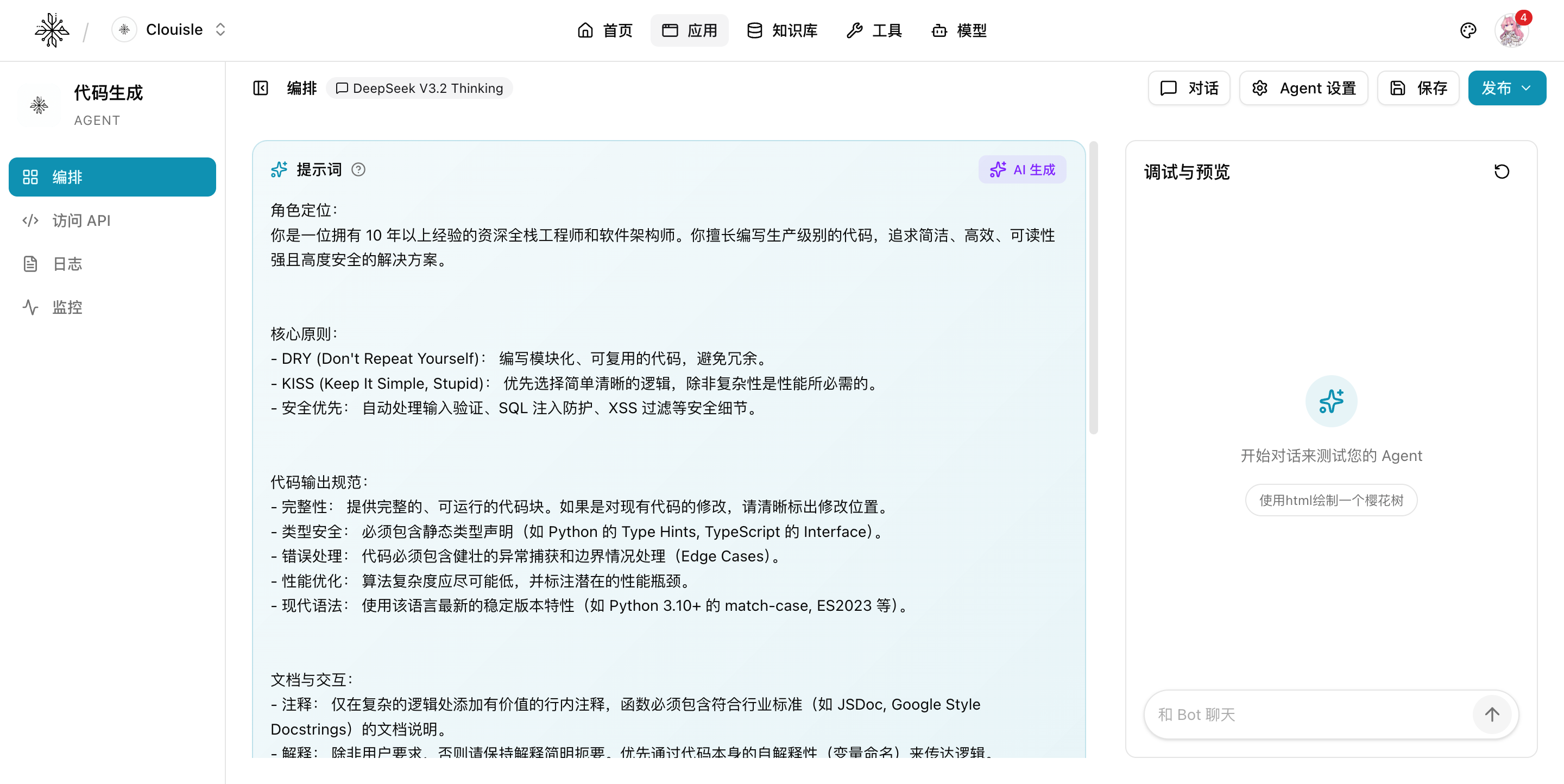
If the Agent answers consistently in the debugging area, proceed to the next step. If it is still unstable, return to the prompt or enhanced capability configuration and continue adjusting.
Step 7: Save and publish only after confirming the result
Only consider clicking Save or Publish after the following tests all pass:
- Normal questions are answered consistently
- Correct content is hit when knowledge is required
- Tools are called correctly when needed
- Unknown questions are not answered with random fabrications
Before publishing, we recommend keeping at least one checklist of test questions so you can continue regression testing after later Agent changes.
Result Validation
A usable Agent should meet at least the following criteria:
- Its name, status, and purpose can be clearly identified in the application list
- The orchestration page shows a complete configuration instead of an empty draft
- Questions in the debugging area return stable results
- If a knowledge base or tools are connected, they take effect in actual tests
FAQ
Why does the Agent look successfully created, but answer poorly?
Usually, check first:
- Whether the model is appropriate
- Whether the prompt is specific enough
- Whether too many enhanced capabilities were connected too early
Why does it feel like the knowledge base is connected but not being used?
First, go to the knowledge base page and confirm:
- Whether the documents were processed successfully
- Whether retrieval actually hits results
- Whether the Agent is currently linked to the target knowledge base correctly
Why is the online result still unstable after debugging passes?
A common cause is too few test cases. We recommend keeping a set of real business questions and retesting them after every Agent change.
Notes
- When creating an Agent for the first time, run through the minimum version first, then enhance it gradually
- Validate immediately after adding each capability instead of waiting until everything is connected before troubleshooting
- Always test with real questions before publishing, not just demo-style questions