 Clouisle
SSO Configuration
Connect enterprise single sign-on in the order of login strategy, account mapping, test validation, and gray release switching.
Feature Overview
SSO configuration is used to connect an enterprise's existing identity system to Clouisle. It not only determines whether users can log in through a unified entry, but also affects account creation, approval, permission assignment, and rollback strategy.
Use Cases
SSO is suitable for:
- Unified identity login inside enterprises
- Synchronizing access permissions when employees join or leave
- Avoiding long-term maintenance of many local accounts
Prerequisites
Before you begin, we recommend confirming:
- The enterprise identity system is ready
- User matching rules have been determined, such as email mapping
- At least one available local administrator account is retained
- Test accounts and abnormal sample accounts are ready
Steps
Step 1: Enter the SSO page in site settings
After entering the Admin Console, administrators open Site Settings, then enter the SSO related page.
This is the centralized entry for all single sign-on strategies.
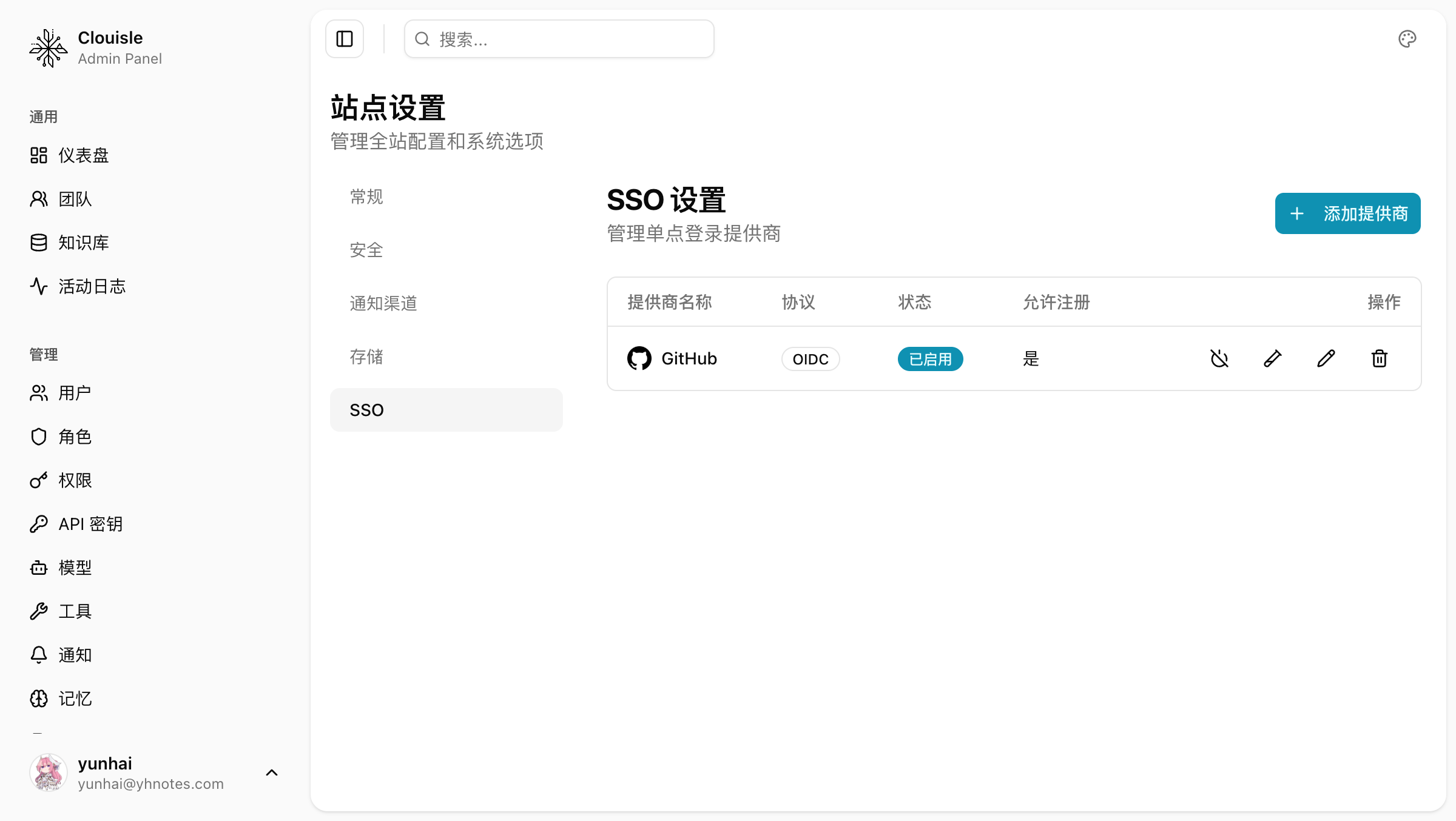
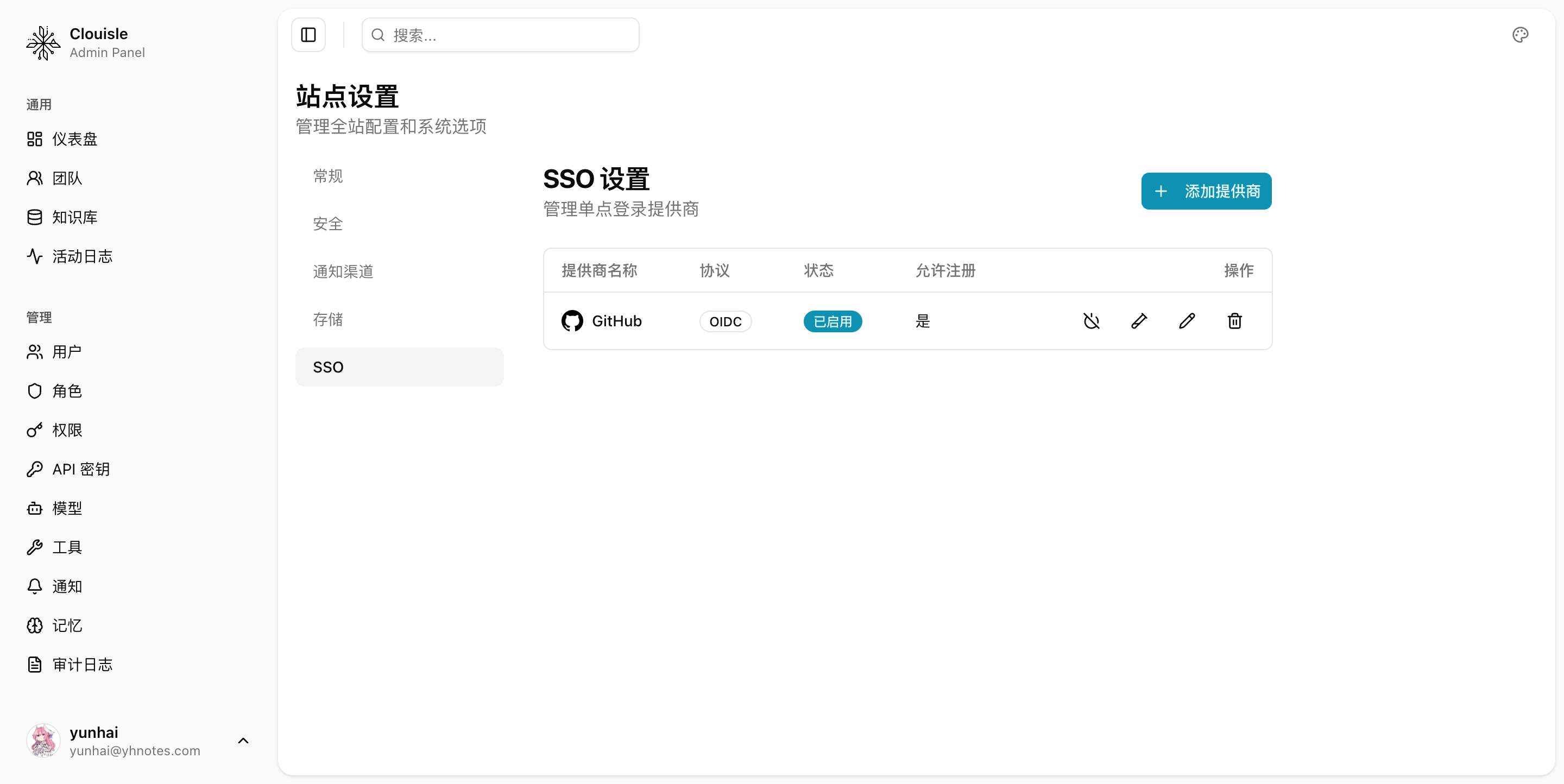
Before making real changes, first read through the existing configuration on the page and confirm whether SSO has already been enabled on the current platform.
Step 2: Decide the overall login strategy first
Prioritize clarifying these questions:
- Whether to enable SSO
- Whether to retain password login
- Whether to allow automatic user creation
- Whether approval is required
This step determines the overall route after the platform switches to SSO. We do not recommend deciding temporarily while integrating.
Step 3: Configure account mapping rules
The most important part of SSO is not whether redirect succeeds, but how the account after login maps into the platform. Focus on confirming:
- Which field is used to match existing accounts
- Whether new users are created automatically after first login
- Whether approval is required after automatic account creation
If mapping rules are not thought through, duplicate accounts, incorrectly bound accounts, or permission mismatches are most likely to appear later.
For example, when using user information returned by GitHub, parameter mapping can be configured as:
{
  "email": "email",
  "username": "login",
  "avatar_url": "avatar_url"
}
This means the platform reads the email, username, and avatar URL from GitHub's email, login, and avatar_url fields respectively.
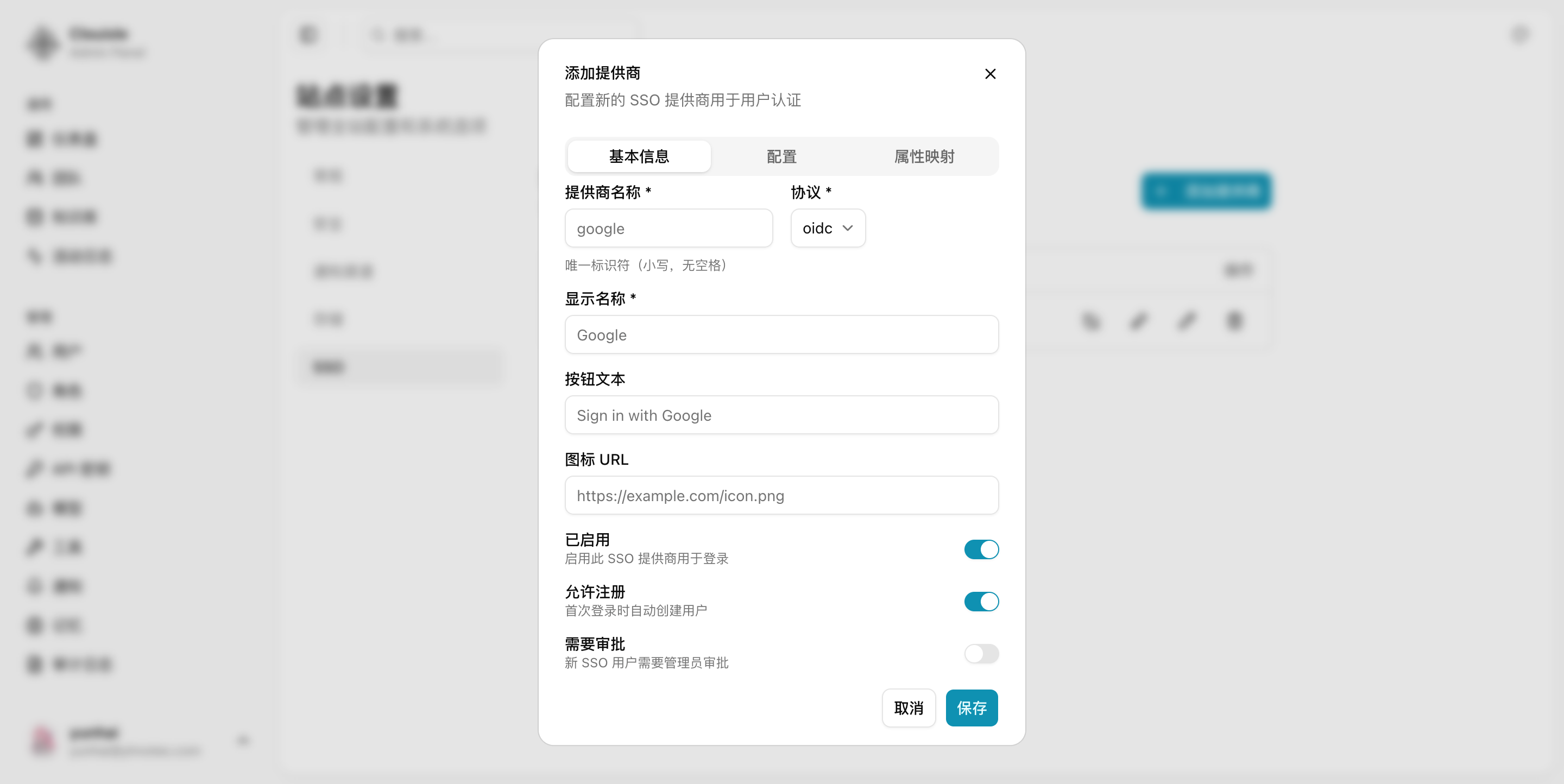
Step 4: Configure the callback URL in the third-party platform
When configuring the callback URL in an IdP, OIDC, or SAML platform, use this format:
https://your-site-domain/api/v1/sso/callback/{provider_name}{provider_name} is the SSO provider name configured in the Admin Console, not its display name.
Examples:
https://clouisle.example.com/api/v1/sso/callback/google
https://clouisle.example.com/api/v1/sso/callback/azure-ad
https://clouisle.example.com/api/v1/sso/callback/company-sso
The system builds the callback URL as:
{base_url}/api/v1/sso/callback/{provider.name}base_url is resolved in this order:
site_urlin Admin Console site settingsBACKEND_URLin configuration- Derived from the current request address
Do not enter the frontend internal post-login redirect path /sso-callback in the third-party IdP, OIDC, or SAML platform.
Step 5: Validate 3 types of scenarios with test accounts first
Do not switch all users from the start. We recommend testing at least the following 3 types of accounts:
- Existing platform accounts
- New accounts logging in for the first time
- Abnormal accounts that should be rejected or require approval
After completing testing, you should be able to confirm that SSO does not only "redirect successfully", but truly writes accounts and authorizes them as expected.
Step 6: Retain a fallback entry, then switch through gray release
Before switching all users, we recommend enabling it in a small scope first. At the same time, retain a local administrator account to avoid losing Admin Console access directly when SSO is misconfigured.
This is a risk point that many platforms most easily overlook.
Result Validation
After SSO configuration is complete, it should at least satisfy:
- Enterprise accounts can successfully log in to the platform
- Existing accounts can be matched correctly without duplicate creation
- Automatic creation and approval logic for new accounts meets expectations
- An administrator fallback entry remains available when configuration is abnormal
FAQ
Why did SSO login succeed, but duplicate accounts appeared in the platform?
Usually because account matching fields are configured inconsistently, such as email rules not being aligned. Check mapping fields first, then decide whether to clean up duplicate accounts.
Why is it not recommended to turn off password login from the beginning?
Because once SSO is misconfigured, administrators may directly lose access to the Admin Console. The correct approach is to validate through gray release first, then gradually tighten local login.
Why should automatic user creation be enabled cautiously?
Automatic creation improves integration speed, but without approval or default role governance, it can easily let users who should not enter the platform come in directly.
Notes
- Validate SSO projects in a small scope first, then roll them out to all users
- Login strategy, account mapping, and permission assignment should be considered together. Do not only look at single sign-on itself
- Always retain an administrator entry that can be used for fallback
Site Settings, Security, and Notifications
Use site-level configuration to centrally define the platform name, security rules, notification outlets, and audit retention policies.
API Overview
Plan Clouisle API integration in the order of capability boundaries, authentication preparation, minimal request debugging, and exception handling.