 Clouisle
Knowledge Base
Build a knowledge base that can truly be used for RAG in the order of creation, import, processing, and retrieval validation.
Feature Overview
A knowledge base is used to convert PDFs, Markdown, web pages, or other documents into searchable knowledge content. Only after documents are correctly imported, processed, and hit can Agents and workflows truly answer questions based on the materials.
Use Cases
A knowledge base is suitable for holding:
- Product documentation
- Help centers
- Training materials
- Company policies
- Project delivery materials
- FAQ and website pages
Prerequisites
Before you start, we recommend preparing:
- 2 to 10 materials with clear structure and relatively recent versions
- A usable Embedding model
- 3 to 5 real questions for retrieval testing
Steps
Step 1: Open the knowledge base list and inspect the existing knowledge structure first
Go to the Knowledge Base page in the Workspace and first check which knowledge bases already exist.
Focus on:
- Whether naming is clear
- Roughly how many documents and chunks each knowledge base has
- Whether an existing knowledge base can be reused directly
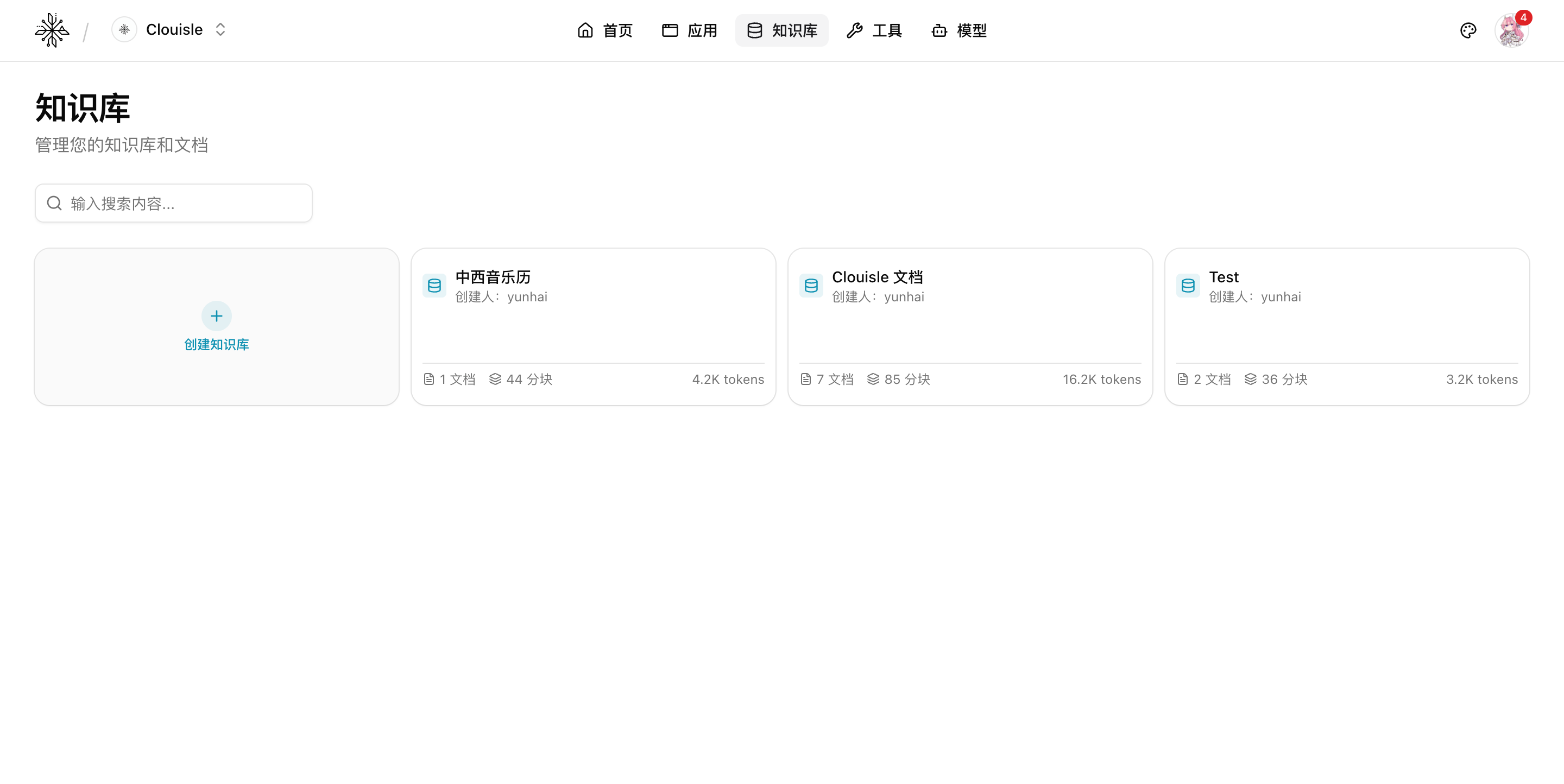
After completing this step, you should be able to decide whether to create a new knowledge base or continue expanding an existing one.
Step 2: Create a knowledge base and fill in basic information
When creating a knowledge base, we recommend first clarifying:
- Name
- Description
- Team it belongs to
The name should directly reflect the topic of the materials, such as "Product Help Center" or "Enterprise Policy Library", instead of only writing "Test Knowledge Base".
Step 3: Choose an Embedding model and set chunking parameters
When creating a knowledge base, confirm at least two types of basic parameters:
- Embedding model
- Chunking parameters, such as
chunk_sizeandchunk_overlap
For the first attempt, we recommend using conservative settings and not adjusting parameters frequently from the beginning. The goal is to first obtain a testable version, then optimize based on hit results.
Step 4: Import the first batch of core materials
For the first import, we recommend adding only a small number of high-quality documents instead of importing all materials at once. Prioritize materials that are:
- Clearly structured
- Stable in content
- Focused in topic
- Directly usable for answering user questions
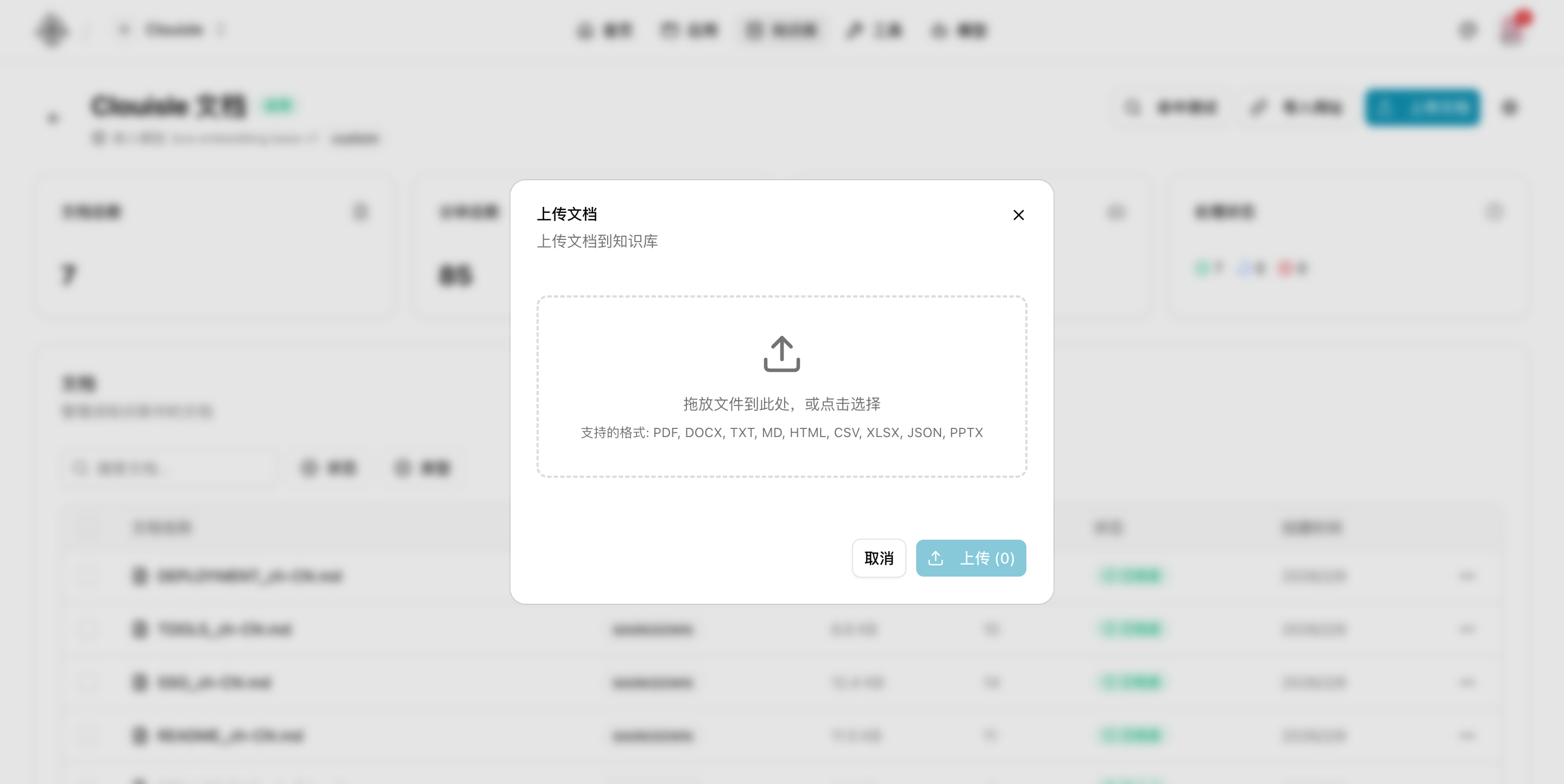
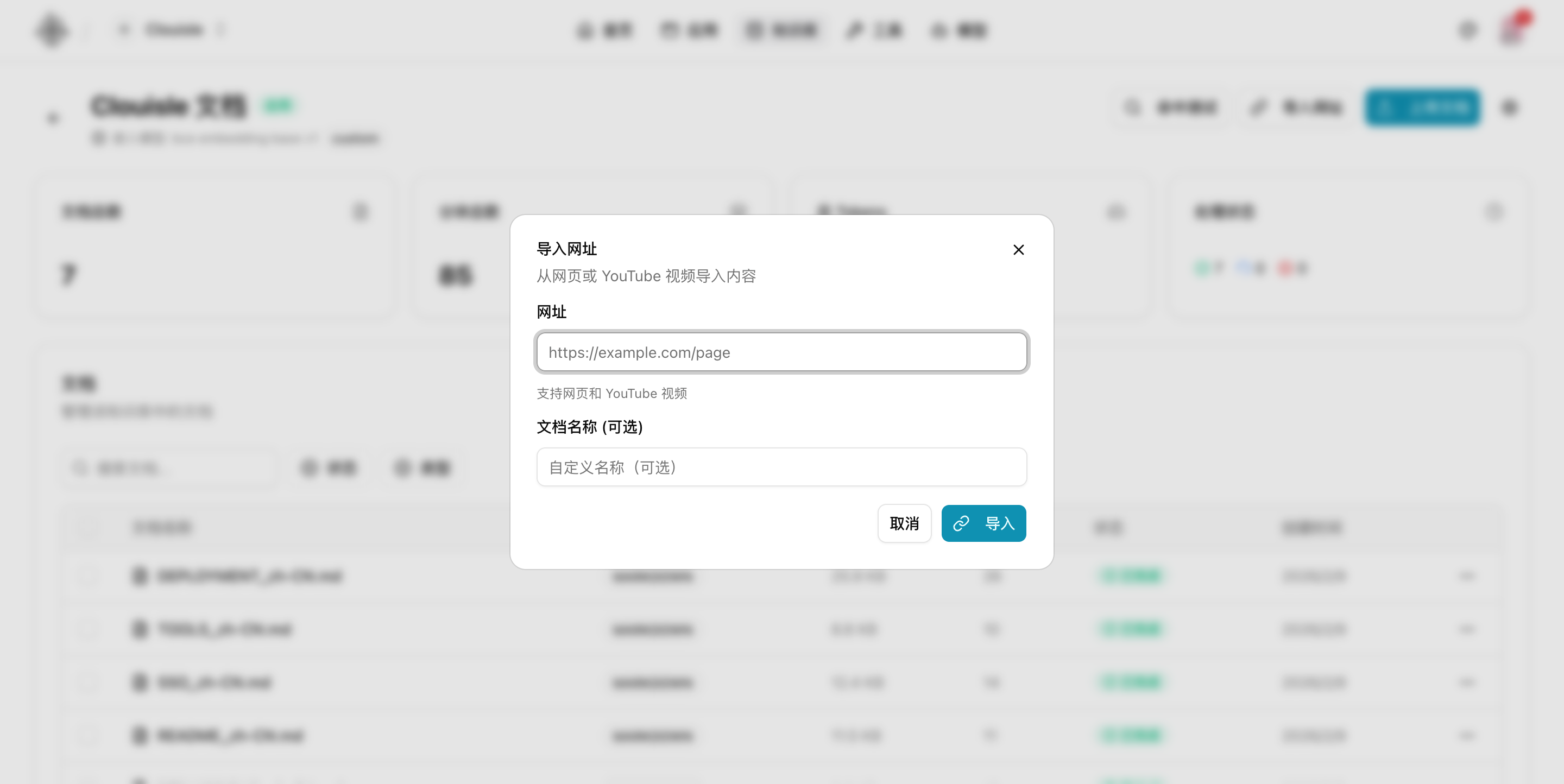
Step 5: Open the knowledge base detail page and check document processing status
After the import is complete, open the knowledge base detail page and focus on confirming:
- Whether the document count matches expectations
- Whether processing status is successful
- Whether the chunk count is obviously abnormal
- Whether the Token estimate is roughly reasonable
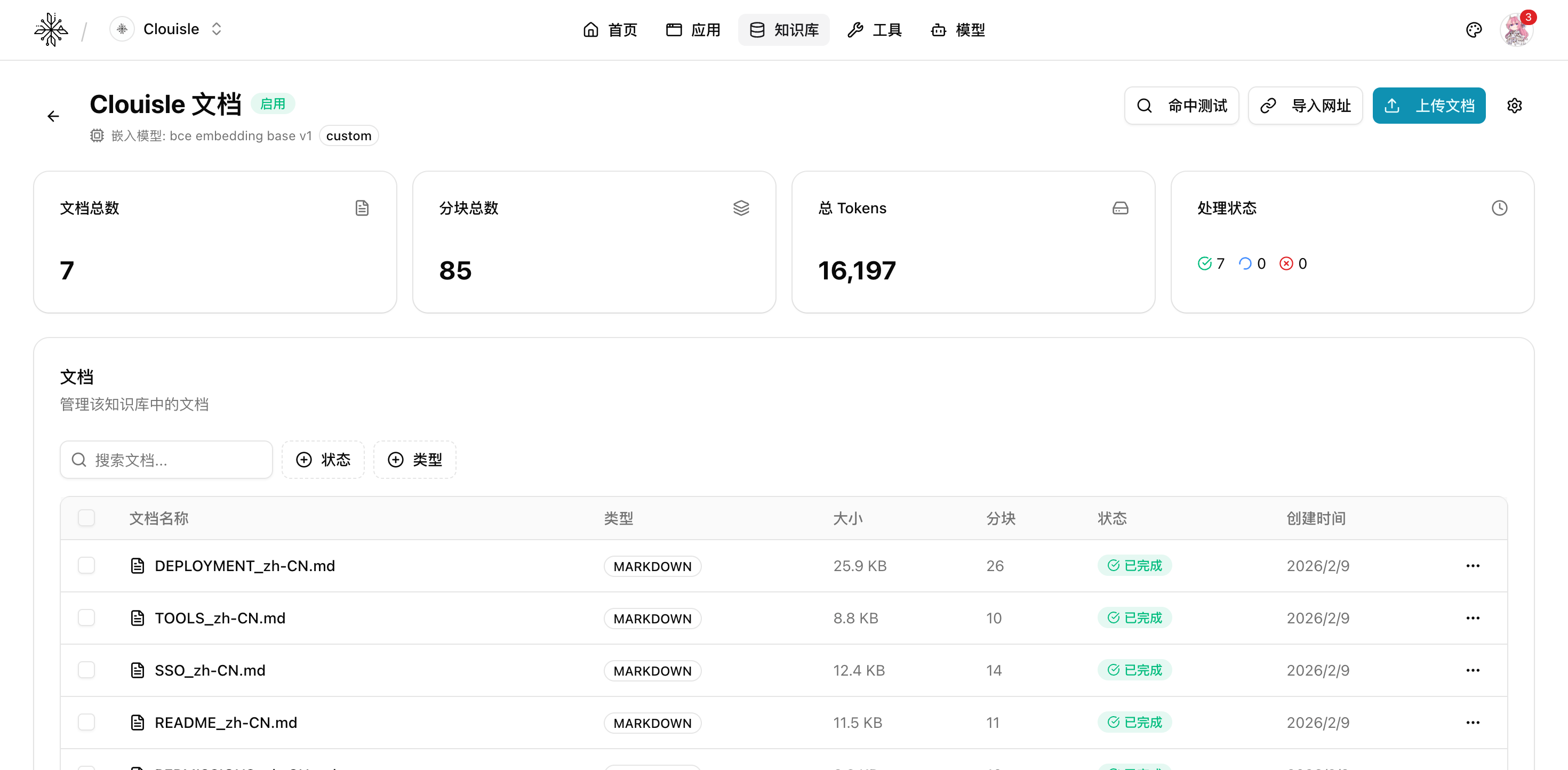
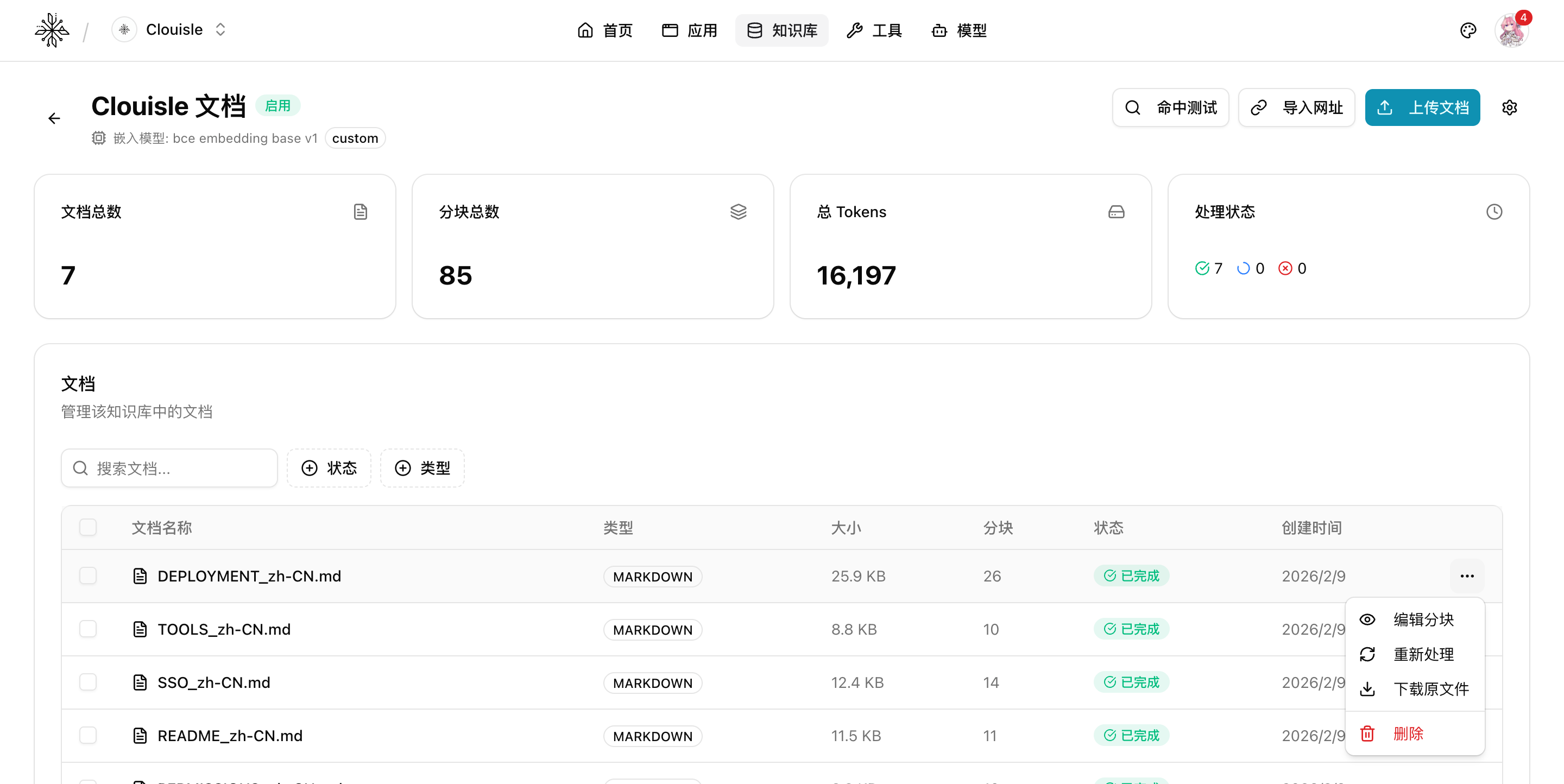
If you can already see document and chunk statistics on this page, it means the basic processing chain of the knowledge base has started to take effect.
If a single document needs further processing, you can also continue from the action menu in the document row:
- Edit chunks
- Reprocess
- Download the original file
- Delete the document
Step 6: Run retrieval tests instead of asking the Agent directly
After the knowledge base is configured, we do not recommend using the Agent for full testing right away. First validate the knowledge base itself independently:
- Enter real questions
- Check whether the correct documents are hit
- Check whether the returned snippets can truly support the answer
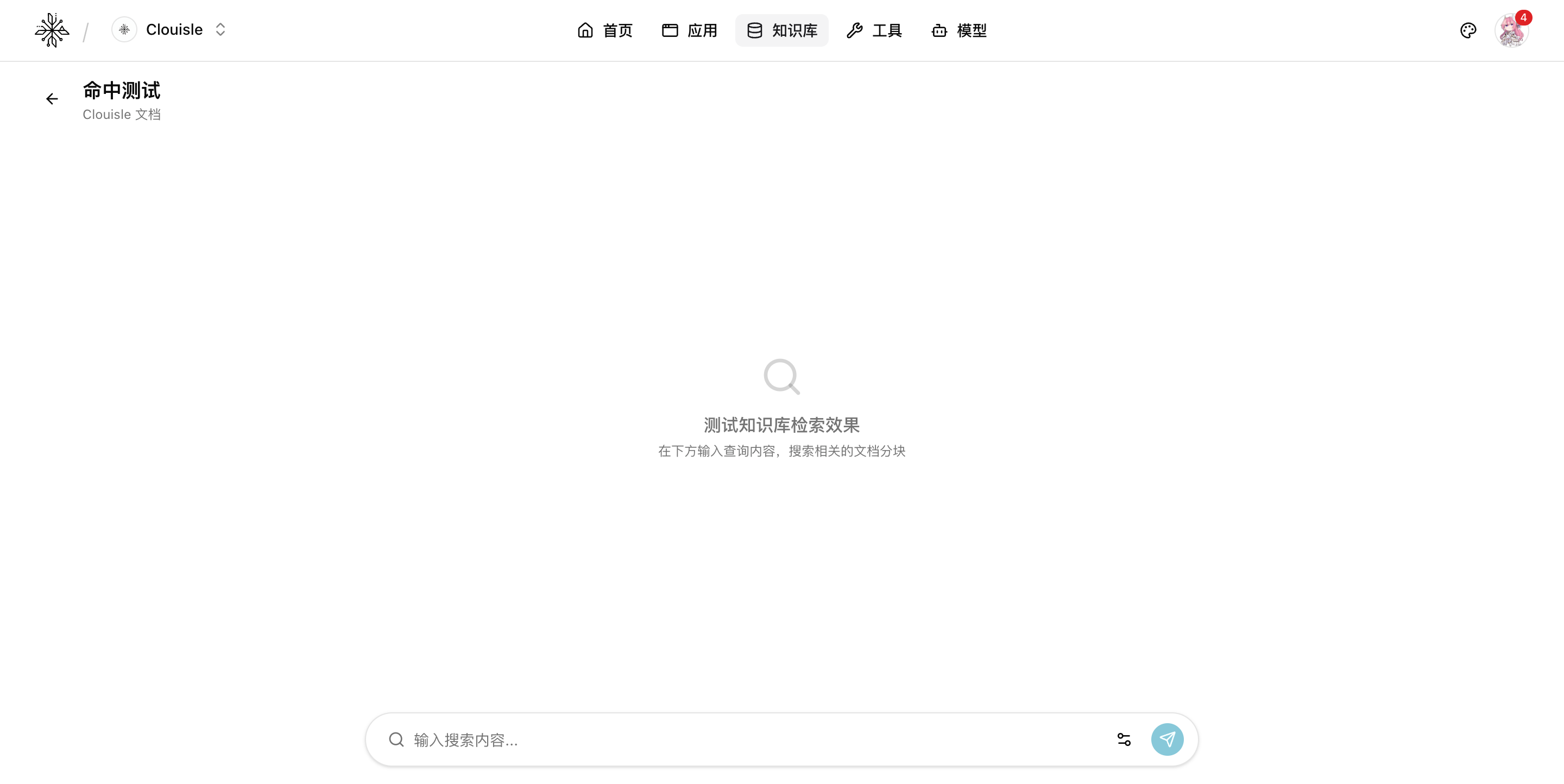
The earlier you do this step, the easier it will be to troubleshoot Agent result issues later.
Step 7: Link it to an Agent or workflow only after retrieval is stable
Only connect the knowledge base to an Agent or workflow after retrieval results are already relatively stable. Otherwise, when "inaccurate answers" appear later, it will be difficult to tell whether the issue is in the knowledge base or application configuration.
Result Validation
A usable knowledge base should meet at least these criteria:
- Its name, document count, and chunk count can be clearly seen in the list page
- The detail page shows that documents were processed successfully
- Real-question retrieval can hit the correct materials
- After linking it to an Agent, answer quality improves noticeably
FAQ
Why did the document upload succeed, but the knowledge base performs poorly?
Do not rush to change the model first. Prioritize checking:
- Whether document content is outdated or duplicated
- Whether chunks are too large or too fragmented
- Whether retrieval questions are written too much like keywords instead of real user questions
Why does the knowledge base detail page show document counts, but the Agent still cannot retrieve anything?
Common causes include:
- Documents have not finished processing
- The Agent is not linked to the correct knowledge base
- The retrieval threshold or hit count is not suitable
Why is it not recommended to import a large amount of material at first?
Because the most important goal of the first round is to confirm that the chain works. If a large amount of material is imported at the beginning, it will be difficult to determine whether later issues come from document quality, parameters, or retrieval strategy.
Notes
- Run through the flow with a small amount of high-quality material first, then expand gradually
- The knowledge base should be validated independently before being connected to an Agent or workflow
- After every large-scale parameter adjustment, rerun a fixed set of sample tests
Conversation and Message Management
Validate an Agent's real interaction experience in the order of creating conversations, viewing messages, and tracking tool and knowledge records.
Document Management and Retrieval Testing
Validate knowledge base results in the order of importing samples, checking processing results, viewing chunks, and running real-question retrieval.