 Clouisle
Models and Tools
Understand how the platform's underlying capability layer is composed, and how models and tools jointly determine the upper limit of applications.
Feature Overview
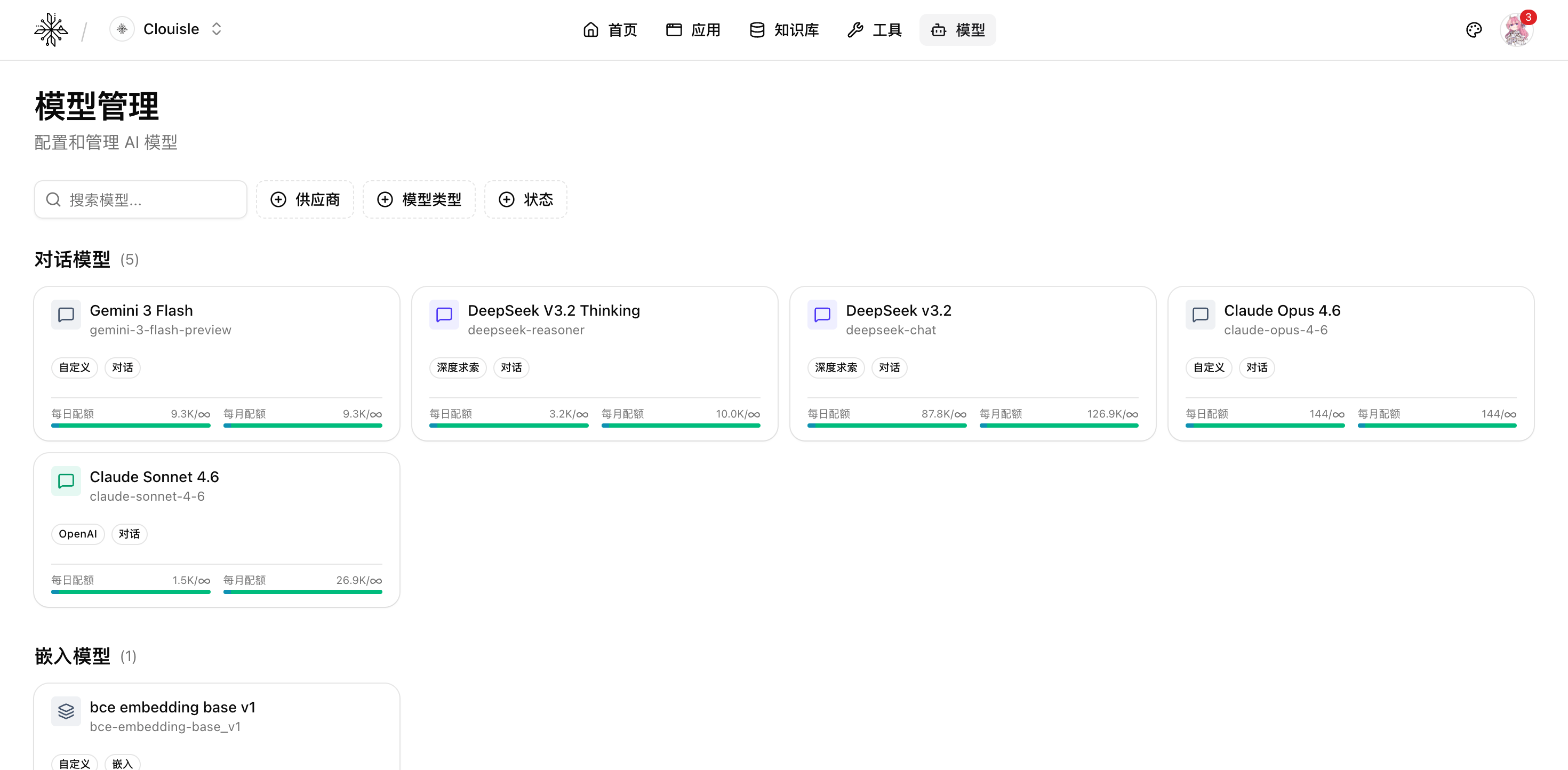
Models determine whether Agents and workflows "can think". Tools determine whether they "can act". These two types of capabilities together form the platform's foundational capability layer.
Use Cases
This section is suitable for:
- Preparing to connect a new model provider
- Preparing to add system invocation capabilities to an Agent
- Teams that need unified governance over costs, permissions, and availability
Prerequisites
Before you begin, we recommend preparing:
- Available model credentials
- Invocation information or credentials for the tool target system
- A plan for which teams and applications these capabilities will be opened to
Steps
Step 1: Connect models first, then tools
Models are the foundation. If the model layer is unstable, later tool and workflow tests will be affected.
Step 2: Complete the basic Model Center configuration
The focus usually includes:
- Provider
- Base URL and API Key
- Model specifications
- Capability tags
- Default parameters
Step 3: Configure the Tool Center next
Tool configuration usually includes:
- Tool type
- Request parameters or command parameters
- Authentication method
- Return value parsing
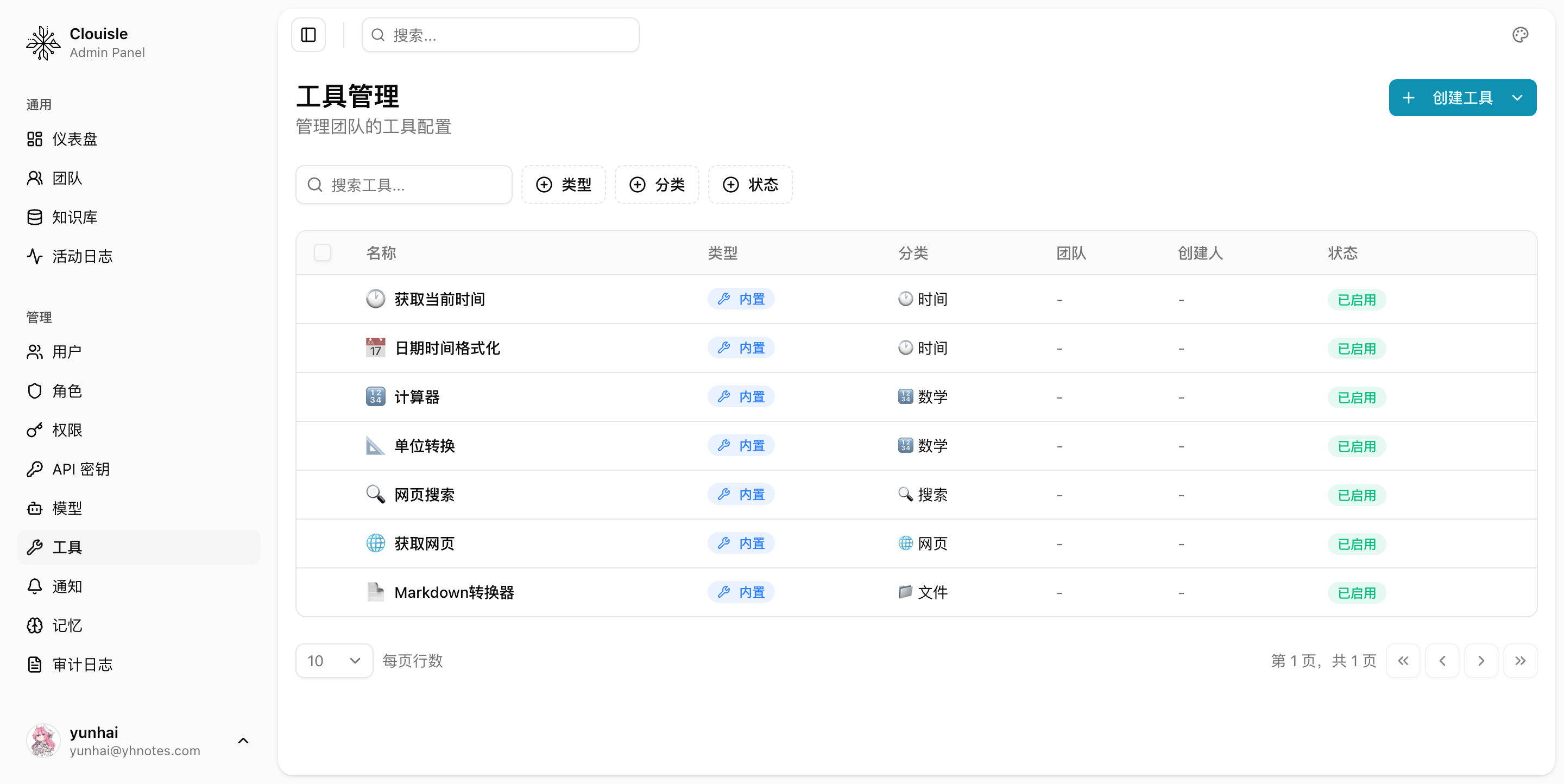
If you need to view tools from a governance perspective in a unified way, you can also enter the Tool Management page in the Admin Console and first confirm which tools currently exist, what types they belong to, and what states they are in.
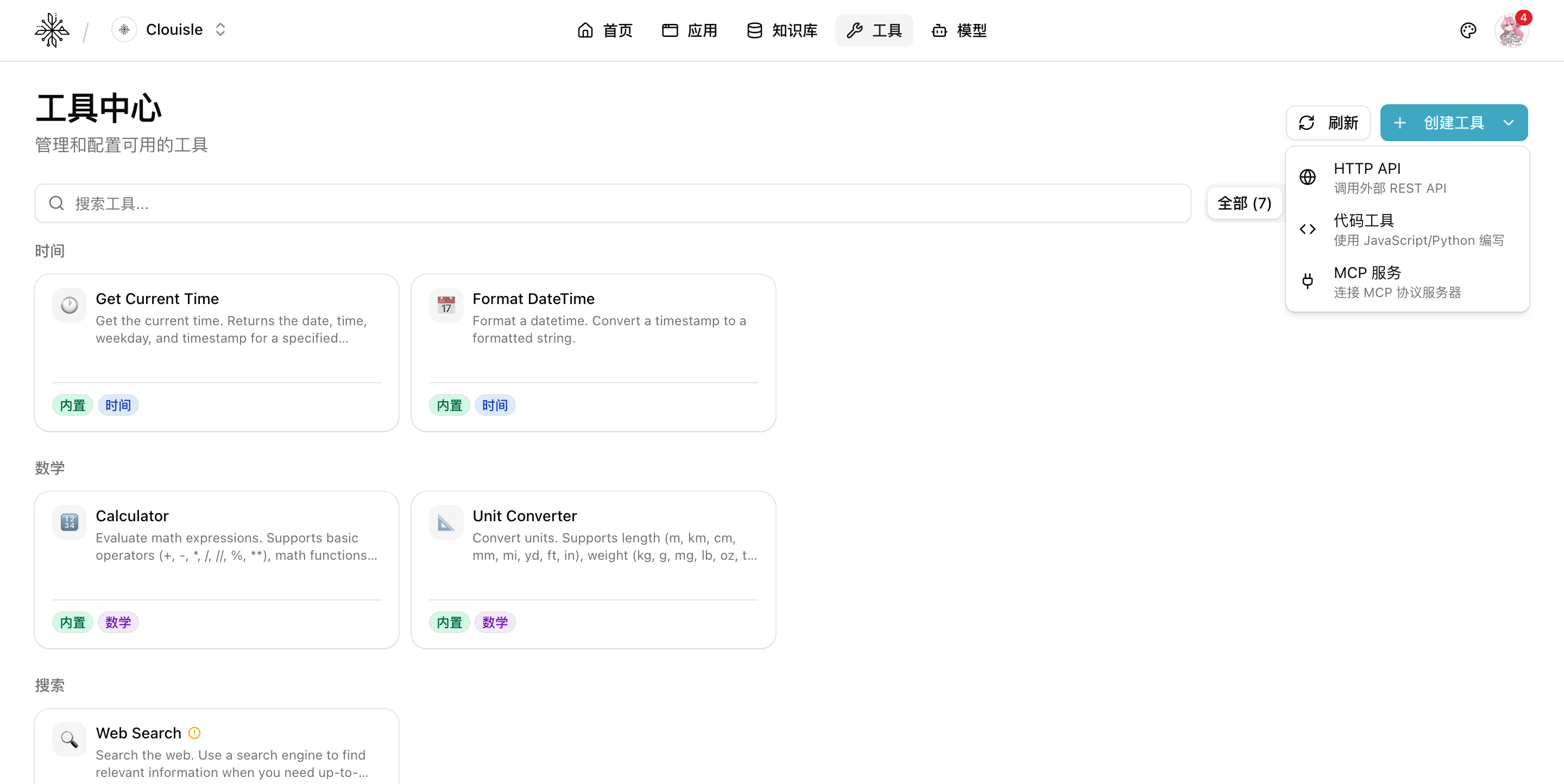
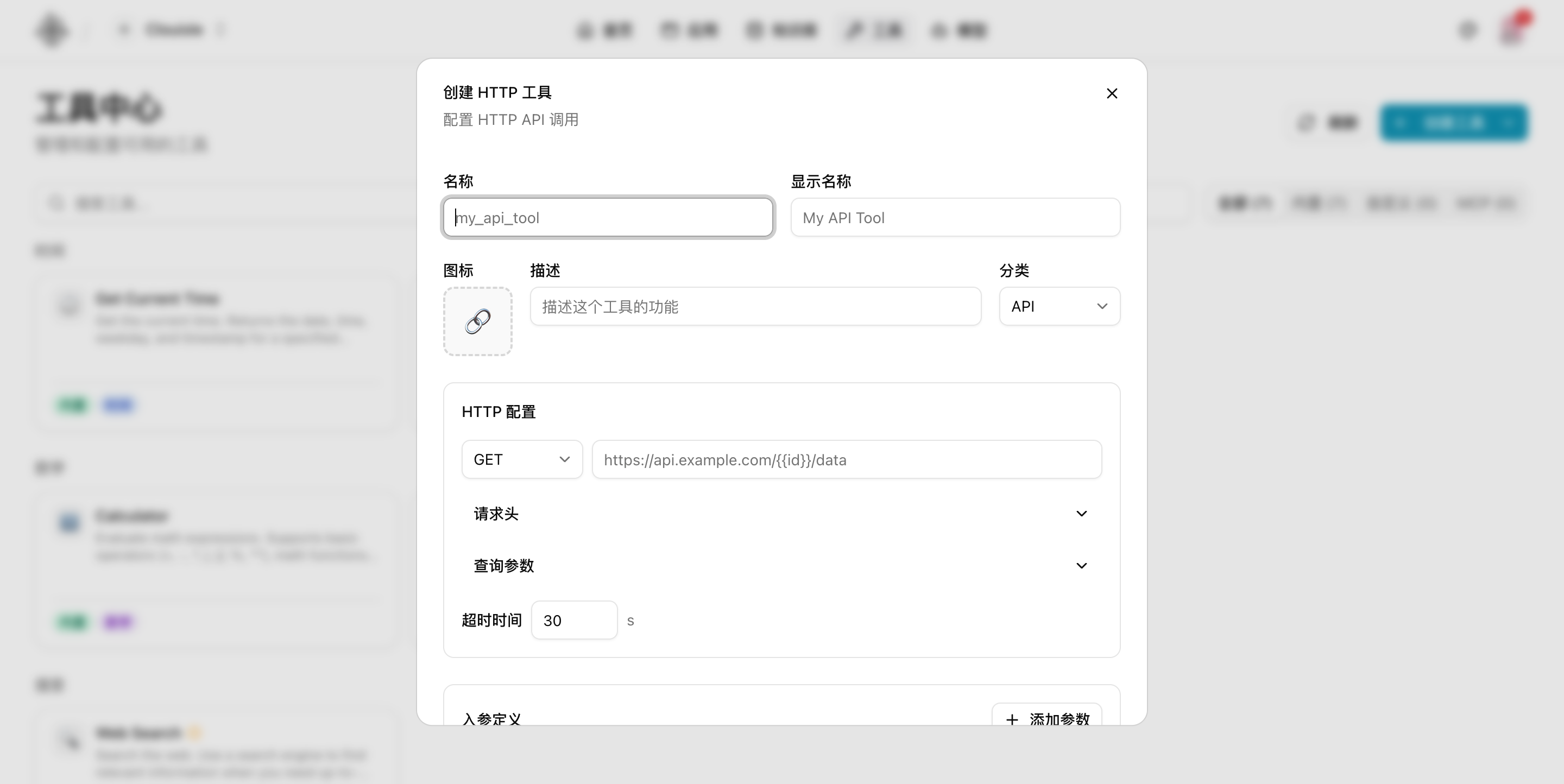
If you choose the HTTP API type, you usually need to fill in first:
- Tool name and display name
- Description and category
- Request method and target URL
- Request headers, query parameters, and timeout
- Input parameter definitions, making it easy to pass values dynamically in an Agent or workflow
For platform built-in tools, a "configuration required" state may also appear. This usually does not mean the tool is unavailable, but that the corresponding external credentials have not yet been completed.
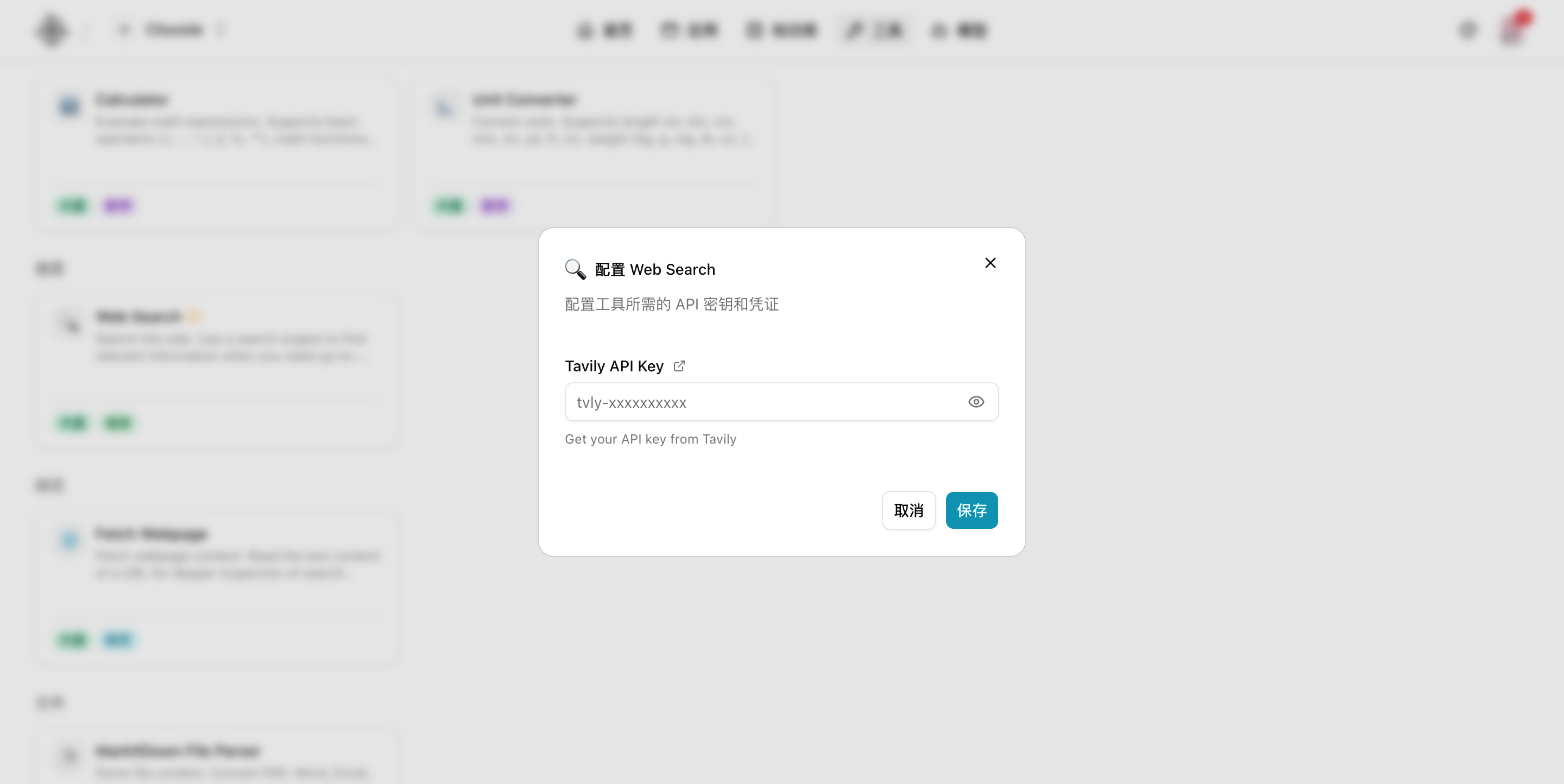
For example, the web search tool requires filling in the corresponding service's API Key first. Only after this step is complete will tool testing and Agent invocation be truly available.
Step 4: Validate integration in a real application
Finally, do not stop at testing only inside the Model Center or Tool Center. Connect them to an Agent or workflow and confirm that the real path can run end to end.
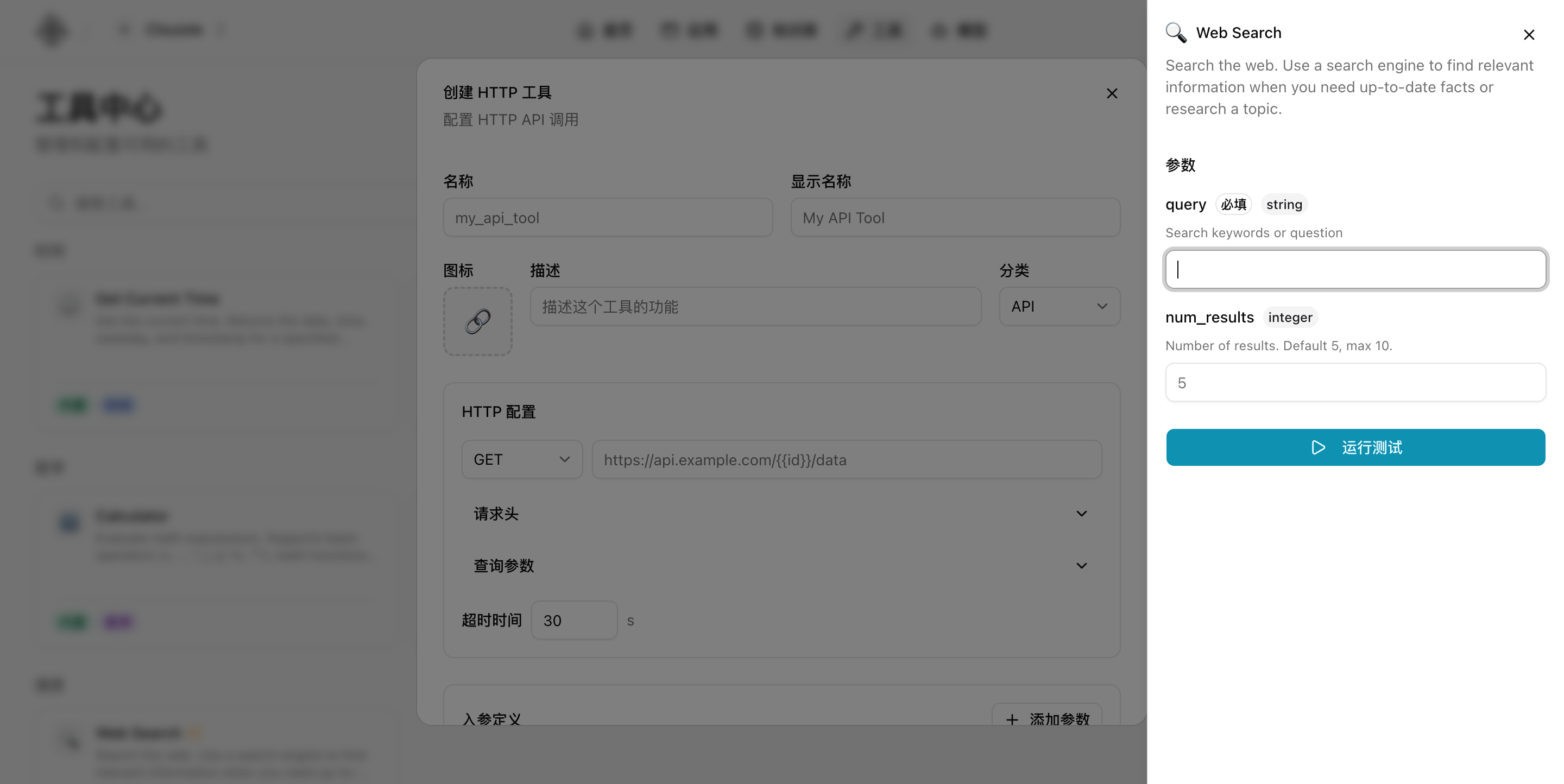
For tool capabilities, we recommend first running a minimal test directly in the tool dialog to confirm:
- Whether parameters can be entered normally
- Whether the returned result matches expectations
- Whether it is suitable to continue connecting it to an Agent or workflow later
Result Validation
We recommend confirming at least:
- Model tests can return normally
- Tool invocation succeeds and the returned value structure is consumable
- Agents or workflows can correctly reference these capabilities
Value
After model and tool governance is in place, the platform can have all of the following at the same time:
- Capability ceiling
- Executability
- Reusability
- Governability
Notes
- New models and new tools should first be validated in a small scope before being opened gradually
- When a tool's returned structure is unstable, prioritize solving parsing issues instead of only tuning prompts
- The richer the capability layer becomes, the more unified naming and state governance are needed
Workflow Monitoring
Continuously monitor workflows in the order of reviewing trends, finding failed samples, replaying execution logs, and feeding insights back into optimization.
Notification System
Build a truly usable notification path in the order of event definition, recipients, notification validation, and daily review.